`, a new canvas will be created and appended into it. You may also pass an HTMLElement instance directly into `CanvasSpace`.
The [`setup`](https://ptsjs.org/docs.md#canvas-canvasspace) function allows you to initiate the space with an object that specifies some setup options, like background-color and auto-resize.
Next, you can get the default [`CanvasForm`](https://ptsjs.org/docs.md#canvas-canvasform) which, as we mentioned before, provides the "pencils". CanvasForm helps you draw lines, circles, curves and more on the html canvas.
```
var form = space.getForm();
```
Do you know you can create your own forms by extending `CanvasForm` or `Form` class? It's like making your own pencils. You can initiate your custom form like this:
```
// Initiate your own BeautifulForm class
var form = new BeautifulForm( space );
```
#### Quick Start
For quick prototyping, you can use the **quickStart** function to create CanvasSpace and CanvasForm directly. This will create two global variables called `space` and `form`, and the function also returns an animate function for you to use. You can do all these in just one line of code:
```
var run = Pts.quickStart( "#hello", "#fff" );
// quickStart returns a function wrapper for use in animation loop, eg:
run( function(time, ftime) { ... } );
```
Now we have paper and pencil. What should we draw?
#### Drawing a point
The `space`, which we have created, contains some handy variables. For example, the `pointer` variable tells us the current position of pointer in space (ie, mouse or touch position). Let's use it to draw a point.
To render an animation continuously, we need to add a "player" to the space. A "player" can be a callback function to run your animation, or an object that specifies functions for `start`, `animate`, and `action`. You may add multiple players to a space.
At its simplest form, this is how we can draw the `pointer`.
```
space.add( () => form.point( space.pointer, 10 ) );
```
And here's the result. Touch the demo and move around.
> Interactive example: [`guide.getting_started_1`](#demo-guide-getting-started-1) · [open live](https://ptsjs.org/demo/?name=guide.getting_started_1)
##### Try editing live code of the above demo. The source code also demonstrates different options of initiating a Pts canvas.
So first we add a "player" as a function to `space`, and in that function, we use `form` to draw `space.pointer` with radius of 10. By default, the point is drawn as a square with red fill-color and white stroke-color.
The animate callback function actually provides 2 parameters: `time` which gives the current running time, and `ftime` which gives the time taken to render a frame.
Let's modify the code above to make the circle pulsate.
```
space.add( (time, ftime) => {
let radius = Num.cycle( (time%1000)/1000 ) * 20;
form.fill("#09f").point( space.pointer, radius, "circle" );
});
```
> Interactive example: [`guide.getting_started_2`](#demo-guide-getting-started-2) · [open live](https://ptsjs.org/demo/?name=guide.getting_started_2)
Success! The calculation `(time%1000)/1000` maps the running time to a value between 0 to 1 every second. Then we use the [`Num.cycle`](https://ptsjs.org/docs.md#num-num) function to make the value cycle between 0...1...0...1, and we multiply the value by 20 to get the radius. Finally, we draw the pointer with the radius as a blue circle. Pretty easy, right?
#### Drawing shapes
There are 3 basic structures in **`Pts`**
- a Pt which is an array of numbers (1D tensor)
- a Group which is an array of Pts (2D tensor)
- an array of Groups (3D tensor)
**`Pts`** provides many classes to work with these structures. For example, a rectangular boundary can be defined by two Pts -- one at top-left and one at bottom-right, and you can also get a Group of 4 Pts from its 4 corners.
Let's make this easier to understand with an example:
```
var rect = Rectangle.fromCenter( space.center, space.size.$divide(2) );
var poly = Rectangle.corners( rect );
poly.shear2D( Num.cycle( time%5000/5000 ) - 0.5, space.center );
form.fillOnly("#123").polygon( poly );
form.strokeOnly("#fff", 3).rect( rect );
```
> Interactive example: [`guide.getting_started_3`](#demo-guide-getting-started-3) · [open live](https://ptsjs.org/demo/?name=guide.getting_started_3)
What's happening in these 5 lines of code? Let's find out.
The first line create a "rectangle" from a center point, and we specify that the center is space's center and the size is space's half-size. ([`$divide`](https://ptsjs.org/docs.md#pt-pt) is a `Pt` function that calculates division and returns a new Pt.) The variable `rect` stores a Group of 2 Pts — its top-left and bottom-right positions.
The second line takes `rect` and get its corners. So the variable `poly` contains a Group of 4 Pts.
The third line use the Group's [`shear2D`](https://ptsjs.org/docs.md#pt-group) function to shear the polygon at space's center. The amount of shearing cycles between -0.5 to 0.5 every 5 seconds.
The 4th and 5th line just draw the rectangle and the sheared polygon.
Even though it takes words to explain, the code is actually quite simple :)
#### Visibles from invisibles
From here on, it's up to you. Squint your eyes and see what shapes and structures hide between those invisible points, or what motions and interactions could generate unique and expressive forms.
For example, what if we take two corners of the rectangle, and join them with the pointer to draw a triangle?
> Interactive example: [`guide.getting_started_4`](#demo-guide-getting-started-4) · [open live](https://ptsjs.org/demo/?name=guide.getting_started_4)
And what if we also draw the inner circle of each triangle?
> Interactive example: [`guide.getting_started_5`](#demo-guide-getting-started-5) · [open live](https://ptsjs.org/demo/?name=guide.getting_started_5)
This is what you can do with `pts` in ~15 lines of code.
```
// setup
Pts.namespace(this);
var space = new CanvasSpace("#hello").setup({ bgcolor: "#fff" });
var form = space.getForm();
// animation
space.add( (time, ftime) => {
// rectangle
var rect = Rectangle.fromCenter( space.center, space.size.$divide(2) );
var poly = Rectangle.corners( rect );
poly.shear2D( Num.cycle( time%5000/5000 ) - 0.5, space.center );
// triangle
var tris = poly.segments( 2, 1, true );
tris.map( (t) => t.push( space.pointer ) );
// circle
var circles = tris.map( (t) => Triangle.incircle( t ) ).filter( Boolean );
// drawing
form.fillOnly("#123").polygon( poly );
form.fill("#f03").circles( circles );
form.strokeOnly("#fff", 3 ).polygons( tris );
form.fill("#123").point( space.pointer, 5 );
});
space.play().bindMouse();
```
Also take a look at the alternative quick start mode example in the [`live editor`](https://ptsjs.org/demo/edit/?name=triangle.incircle). Give it a try!
Hope this gives you a quick and enjoyable walk-through. But wait, there's more: Take a look at the other guides which will explain **`Pts`** features in details.
We appreciate your feedbacks and bug reports. Please file an issue at [github](https://github.com/williamngan/pts) or ping [@williamngan](https://twitter.com/williamngan) on twitter.
Enjoy and have fun!
[Guide source](https://github.com/williamngan/pts/blob/master/guide/md/_0100_Get_started.md)
### Pt
A [`Pt`](https://ptsjs.org/docs.md#pt-pt) represents a point in space, or more technically, an _n_-dimensional vector. You may also think of a `Pt` as an array of numeric values, a set of weights, or an arrow coming from the origin point (0,0,0...).
#### Creating a Pt
You can create a [`Pt`](https://ptsjs.org/docs.md#pt-pt) in many different ways:
```
// defaults to (0,0)
new Pt()
// from a series of parameters, array, or object
new Pt( 1, 2, 3, 4 )
new Pt( [1,2,3] )
new Pt( {x:0, y:1, z:2, w:3} )
new Pt( anotherPt )
Pt.make( 5, 0 ) // same as new Pt(0,0,0,0,0)
```
Here's a simple demo visualizing a Pt, which moves with your mouse/touch.
> Interactive example: [`guide.pt_create`](#demo-guide-pt-create) · [open live](https://ptsjs.org/demo/?name=guide.pt_create)
##### Here the blue dot is the last position of your mouse/touch as a Pt. The black lines are the distances from the origin (top-left corner), which is equivalent to the Pt's position. The blue line represents another way to think of this Pt -- as a vector, as an arrow from the origin of this space.
#### Float32Array
Since [`Pt`](https://ptsjs.org/docs.md#pt-pt) is a subclass of javascript's [`Float32Array`](https://developer.mozilla.org/en-US/docs/Web/JavaScript/Reference/Global_Objects/Float32Array), it means you may use all the `Float32Array` features on a `Pt` too. For example:
```
p[0]
p.fill( 0, 1, 2 )
p.reduce( (a,b) => Math.max(a,b), 0 );
```
Note that Float32Array doesn't allow some common Array functions like `push()` and `pop()` . If you need to grow or shrink the Pt's dimensions, either create a new one or use [`$concat`](https://ptsjs.org/docs.md#pt-pt) and [`$take`](https://ptsjs.org/docs.md#pt-pt).
#### Updating values
You can update a Pt's values by using [`to`](https://ptsjs.org/docs.md#pt-pt) function, or accessing the [`.x`](https://ptsjs.org/docs.md#pt-pt), [`.y`](https://ptsjs.org/docs.md#pt-pt), [`.z`](https://ptsjs.org/docs.md#pt-pt), [`.w`](https://ptsjs.org/docs.md#pt-pt) properties.
```
p.to( 1, 2, 3 )
p.to( anotherPt )
p.w = p.x + p.z
```
#### Vector math
Pt provides basic functions for calculating vectors and matrices. But don't worry if you are not familiar with linear algebra. To start, think of it as methods to do calculations on arrays of values, like adding or multiplying them.
```
let pt = new Pt( 10, 10 )
pt.add( 1, 2 ) // pt is now (11, 12)
pt.divide( 2 ) // divide each value by 2
pt.multiply( {x: 2, y: 1} )
pt.subtract( anotherPt ).multiply( 5 ).add( [1,2,3] )
```
The above functions like [`add`](https://ptsjs.org/docs.md#pt-pt) will update the values of `pt` instance. If you want to get the results as a new Pt, use [`$add`](https://ptsjs.org/docs.md#pt-pt) instead. If a function's name starts with `$`, it indicates that its return value will be a new Pt.
```
let p1 = pt.$add( 1,2,3 );
let p2 = pt.$multiply( 5 ).add( 1,2,3 )
```
There are other basic vector operations like [`unit`](https://ptsjs.org/docs.md#pt-pt) (get a normalized vector), [`magnitude`](https://ptsjs.org/docs.md#pt-pt) (get its distance from origin), [`dot`](https://ptsjs.org/docs.md#pt-pt) (find dot product), [`$project`](https://ptsjs.org/docs.md#pt-pt) (find its projection vector). Check the docs on [`Pt`](https://ptsjs.org/docs.md#pt-pt) for a full list.
#### Angles
Since a Pt can be thought of as an arrow from origin, you can find its angle with [`angle`](https://ptsjs.org/docs.md#pt-pt) function. You can also find the angle between two Pts with [`angleBetween`](https://ptsjs.org/docs.md#pt-pt) function. A related function [`toAngle`](https://ptsjs.org/docs.md#pt-pt) lets you move a Pt by specifying a target angle.
```
pt.angle()
pt.angle(Const.yz) // get the angle of axis y-z
pt.angleBetween( anotherPt )
pt.toAngle( Math.PI/2 )
```
##### * Note that all angles are specified in radian, where 180 degrees = _π_ radian. (Imagine half-circle is like 180 degrees.) You can use [`Geom.toRadian`](https://ptsjs.org/docs.md#num-geom) and [`Geom.toDegree`](https://ptsjs.org/docs.md#num-geom) functions to convert between degrees and radian.
> Interactive example: [`guide.pt_angle`](#demo-guide-pt-angle) · [open live](https://ptsjs.org/demo/?name=guide.pt_angle)
##### The above demo uses some basic vector operations and angle functions.
#### Transformations
If you have used Illustrator or other graphics software before, you probably know the operations to rotate or scale a shape. Pt also provides these transformation functions:
```
pt.scale( 0.5 )
pt.rotate2D( Math.PI/3 )
pt.shear2D( [0.3, 1.2] )
pt.reflect2D( [p1, p2] )
```
If you want to transform from a specific anchor point instead of at (0,0), provide an anchor as the second parameter:
```
pt.scale( 0.5, anchorPt )
pt.rotate2D( Math.PI/3, anchorPt )
```
Take a look at the [`Geom`](https://ptsjs.org/docs.md#num-geom) class which also provides many functions to help with geometry and transformations.
> Interactive example: [`guide.pt_reflect`](#demo-guide-pt-reflect) · [open live](https://ptsjs.org/demo/?name=guide.pt_reflect)
##### A demo of scale and reflect transformation. The blue line's length changes the scale, while its angle specifies the reflection. Take a look at the source code to see how easy this is :)
#### Roll your own
You may use all of Float32Array's functions (eg, `slice`, `map`) with Pt. Some additional ones in Pt like [`$concat`](https://ptsjs.org/docs.md#pt-pt), [`$take`](https://ptsjs.org/docs.md#pt-pt) make it simpler to work with TypedArray. Take a look at "Op" section to see how you can write your own functions to work with Pt easily.
```
// Use $concat and $take to grow and shrink a TypedArray
let p1 = new Pt(1, 2, 3).$concat( 4, 5 ); // becomes Pt(1,2,3,4,5)
// Use op -- see how it works in Op section
p1.op( Line.collinear );
```
#### Cheat sheet
Creating and cloning
```
new Pt()
new Pt( 1, 2, 3, 4 )
new Pt( [1,2,3] )
new Pt( {x:0, y:1, z:2, w:3} )
new Pt( anotherPt )
Pt.make( 5, 0 ) // same as new Pt(0,0,0,0,0)
pt.clone()
```
Getting and setting values
```
p[1]
p[2] = p[0]
p.x = p.y+1
p.to( 1, 2, 3 )
p.id = "p01"
```
Calculating
```
p.equals( p2, 0.00001 )
p.$ceil().floor().round()
p.abs()
p.maxValue() - p.minValue()
p.$min( p2 ).$max( p3 )
```
Vector math
```
p.add( 1,2 ).subtract( p2 ).multiply( 10 ).divide( 2 )
p.$add( 1,2 ) // $-prefix means getting result as a new Pt
p.angle()
p.angleBetween( p2 )
p.dot( p2 )
p.$cross( p2 )
p.$project( p2 )
p.magnitude()
p.magnitudeSq() // magnitude squared
p.unit() // unit vector
```
Transforming
```
p.scale(0.5).rotate2D( Const.half_pi )
p.shear2D( 0.2 ).reflect2D( line )
p.toAngle( Math.PI/3, 100 )
```
Working with array values
```
p.reduce( (a,b) => Math.max(a,b), 0 ) // can use all Float32Array functions
p.$take("xz")
p.$concat( 10, 100 )
p.toArray() // convert Float32Array to Array
```
Check out the [full documentation](https://ptsjs.org/docs/) too.
[Guide source](https://github.com/williamngan/pts/blob/master/guide/md/_0200_Pt.md)
### Group
A [`Group`](https://ptsjs.org/docs.md#pt-group) represents an array of [`Pt`](https://ptsjs.org/docs.md#pt-pt). It is an abstraction that can fit many contexts. For example, you may use it to define a matrix, store a polygon, or interpolate a curve where each Pt is an anchor point.
In fact, a wide range of complex forms and ideas can be represented as one of these simple structures:
- a Pt which is an array of numbers
- a Group which is an array of Pts
- an array of Groups
The goal of `pts.js` is to help you see and express these structures in creative ways.
#### Creating a Group
[`Group`](https://ptsjs.org/docs.md#pt-group) is a subclass of javascript [`Array`](https://developer.mozilla.org/en-US/docs/Web/JavaScript/Reference/Global_Objects/Array). Therefore, similar to creating an Array, you can create a Group like these:
```
// Like Array constructor
let g1 = new Group( p1, p2, p3 );
// wrap an array of Pt into a group
let g2 = Group.fromArray( [ p1, p2, p3 ] );
// Use it just like array too
g1[2] = new Pt(1,2,3);
```
You can also easily convert an array of number arrays into a Group of Pts:
```
let g3 = Group.fromArray( [ [1,2], [3,4], [5,6] ] );
g3[0]; // returns Pt(1,2)
g3.p2; // returns Pt(3,4)
```
Remember that a Group must only contain Pt. This is different from Array which can contain different data types like strings and objects.
```
let notOk = new Group( [1,2,3], "hello" ); // Don't do this
```
#### Array functions
You can use all the javascript's Array functions in a Group. No need to learn a new API.
```
g.unshift( new Pt(5, 6) );
g.pop();
let mags = g.map( (p) => p.magnitude() );
```
##### Note on typescript: Array functions such as `map` are typed to return an Array. If you need Group-specific methods on the result, wrap it explicitly: `let gg = Group.fromPtArray( group.map( (p) => p.unit() ) );`
It's common to apply a Pt function to all the Pts in a Group. You can use [`forEachPt`](https://ptsjs.org/docs.md#pt-group) to do this easily, as long as the Pt function will return a Pt.
```
let g = new Group( new Pt(1.1, 2.2), new Pt(3.3, 4.4) );
g.forEachPt( "floor" ); // g is now [ Pt(1,2), Pt(3,4) ]
g.forEachPt( "$min", 2, 2 ); // g is now [ Pt(1, 2), Pt(2, 2) ]
g.forEachPt( "dot", new Pt(1,2) ); // Error, dot() doesn't return Pt
```
There are also a couple additional functions in Group that let you work with array more effectively. Take a look at [`insert`](https://ptsjs.org/docs.md#pt-group), [`remove`](https://ptsjs.org/docs.md#pt-group), [`segments`](https://ptsjs.org/docs.md#pt-group) and others.
> Interactive example: [`guide.group_segments`](#demo-guide-group-segments) · [open live](https://ptsjs.org/demo/?name=guide.group_segments)
##### In this demo, we keep track of the last 50 positions of the pointer in a Group, and draw one circle for every 5 segments. Take a look at the source code and note the use of common Array functions like `push` and `map` along with Group functions like `segments`.
#### Transformations
Similar to transformations in Pt, you can use [`scale`](https://ptsjs.org/docs.md#pt-group), [`rotate2D`](https://ptsjs.org/docs.md#pt-group) etc to transform a Group of Pts. There are also [`moveBy`](https://ptsjs.org/docs.md#pt-group) and [`moveTo`](https://ptsjs.org/docs.md#pt-group) to translate its positions. Basic arithmetics like [`add`](https://ptsjs.org/docs.md#pt-group) and [`multiply`](https://ptsjs.org/docs.md#pt-group) are also included.
These functions affect every Pt in the Group. For a [circle](https://ptsjs.org/guide/Op-0400.html), move only its center (`circle[0]`) to keep its radius unchanged.
Furthermore, you may use [`$matrixAdd`](https://ptsjs.org/docs.md#pt-group) and [`$matrixMultiply`](https://ptsjs.org/docs.md#pt-group) to do advanced matrix calculations.
#### Cheat sheet
Creating and cloning
```
new Group( new Pt(1,2), new Pt(3,4) )
Group.fromArray( [ [1,2], [3,4] ])
Group.fromPtArray( [new Pt(1,2), new Pt(3,4)] )
g.clone()
```
Getting and setting Pts
```
g[0]
g.p1
g[1] = new Pt()
g.id = "g01"
```
Working with array
```
g.map( (p) => p.unit() ) // support all Array functions
g.insert( [p1, p2], 0 )
g.remove( 3, 2 )
g.segments( 2, 2 )
g.zipSlice(2)
g.$zip()
```
Positions and bounds
```
g.boundingBox()
g.anchorFrom( 3 ) // relative to absolute position
g.anchorTo( pt ) // absolute to relative position
g.centroid()
g.interpolate( 0.5 )
g.sortByDimension(1, true)
```
Calculate
```
g.add( 10 )
g.multiply( 0.5 )
g.$matrixAdd( g2 )
g.$matrixMultiply( g2, true )
g.forEachPt( "floor" )
```
Transform
```
g.moveTo( 100, 100 )
g.moveBy( 10, 1 )
g.scale( 0.5 ).rotate2D( Const.half_pi )
g.shear2D( 0.2 ).reflect2D( line )
```
Check out the [full documentation](https://ptsjs.org/docs/) too.
[Guide source](https://github.com/williamngan/pts/blob/master/guide/md/_0300_Group.md)
### Op
We are all in the gutter, but some of us are looking at the stars, said Oscar Wilde. To him, and to many of us, a sky full of stars moves us to look into that vast darkness and, with imagination, connect those scattered and flickering dots. What would a sky be without stars, and what would a starry night be without us looking and imagining!
A group of points is never just a mathematical concept. We actively connect the dots and find strange forms and humanistic meanings in them.
In **`Pts`**, these acts of imagination are known as "Op". They transform a static point into an active one, a noun into a verb, a vector space into an expressive canvas.
Let's begin with an example. Suppose there are 100 points randomly placed on a canvas, and a pointer moves randomly about. A simple (indeed boring) act of imagination might be to ask: which point is closest to the pointer?
We can draw this whole scene a few lines of code:
```
// make 100 pts and pointer
var pts = Create.distributeRandom( space.innerBound, 100 );
let t = space.pointer;
// sort the pts
pts.sort( (a,b) =>
a.$subtract(t).magnitudeSq() - b.$subtract(t).magnitudeSq()
);
// draw the pts
form.fillOnly("#123").points( pts, 2, "circle" );
form.fill("#f03").point( pts[0], 5, "circle" );
form.strokeOnly("#f03", 2).line( [pts[0], space.pointer] );
```
> Interactive example: [`guide.op_closest`](#demo-guide-op-closest) · [open live](https://ptsjs.org/demo/?name=guide.op_closest)
##### Demo: Finding the closest pt to pointer and paint it red
Notice we just used the javascript [`sort`](https://developer.mozilla.org/en-US/docs/Web/JavaScript/Reference/Global_Objects/Array/sort) function to rearrange the `pts` group by comparing two points' distance to `space.pointer`. Then we draw the first point in the group (the closest) in red.
The humble `sort` function is essentially an "Op" by our definition. It transforms a group of points and makes it meaningful. From here on, it's easy to imagine what other structures we can derive from this simple sketch. For example, what if we visualize all points' distances to the pointer in different ways:
```
pts.forEach( (p, i) =>
form.point( p, 20 - 20*i/pts.length, "circle" ) )
```
> Interactive example: [`guide.op_closest_2`](#demo-guide-op-closest-2) · [open live](https://ptsjs.org/demo/?name=guide.op_closest_2)
##### Demo: Relate a circle's size to its proximity to pointer
The group of points becomes active. It's somewhat interesting and kind of a mess -- a starting point for further experimentation.
**`Pts`** includes many different Ops to help you make the points meaningful. Next we will look at them in more details.
#### Static Op
The Op module includes various static functions that deal with specific forms such as [`Rectangle`](https://ptsjs.org/docs.md#op-rectangle) and [`Curve`](https://ptsjs.org/docs.md#op-curve), and Num module includes utility classes like [`Num`](https://ptsjs.org/docs.md#num-num) and [`Geom`](https://ptsjs.org/docs.md#num-geom) for numeric and geometric calculations. Most of them are straightforward and easy to use.
It's time to let our imaginary forces work on these functions. Keeping most of the code from above, let's try the [`perpendicularFromPt`](https://ptsjs.org/docs.md#op-line) function. Given a line and a point, this Op finds a perpendicular line (ie, shortest distance) between the point and the line.
```
let path = [new Pt(), space.pointer];
let perpends = pts.map( (p) => [p, Line.perpendicularFromPt(path, p)] );
```
> Interactive example: [`guide.op_perpendicular`](#demo-guide-op-perpendicular) · [open live](https://ptsjs.org/demo/?name=guide.op_perpendicular)
##### Demo: Find a perpendicular line from a point onto an infinite path.
First we create a line by joining the pointer and the top-left corner at (0,0), and then we convert the set of random points on canvas to perpendicular lines. Also note that, since we don't need additional features from [`Group`](https://ptsjs.org/docs.md#pt-group), we can just use Array to store the Pts for drawing. Pretty fun and simple, right?
Ops can also construct shapes out of points. Creating a rectangle or a line from 2 points is obvious, so let's get a bit more elaborate.
```
// create a group of 4 Pts from rectangle
let c = space.center;
let corners = Rectangle.corners( Rectangle.fromCenter( c, space.height ) );
// interpolate with time to make them move
let cycle = (t, i) => Num.cycle( (t+i*500)%3000/3000 );
let pts = corners.map( (p, i) => Geom.interpolate( p, c, cycle(time, i)) );
// close the B-spline by adding first 3 anchors at the end
pts.push( space.pointer );
pts = pts.concat( pts.slice(0, 3) );
// draw the B-spline curve
let curve = Curve.bspline( pts );
form.fill("#f03").stroke("#fff", 3).polygon( curve );
```
> Interactive example: [`guide.op_bspline`](#demo-guide-op-bspline) · [open live](https://ptsjs.org/demo/?name=guide.op_bspline)
##### Demo: Drawing a B-spline using 5 anchor points.
What's going on here? First, we use [`Rectangle.fromCenter`](https://ptsjs.org/docs.md#op-rectangle) to make a rectangle and then get its 4 corners as a group.
Then, we define a function called `cycle` to get a value between 0 to 1 for interpolation. The function takes two parameters `t` (for time) and `i` (for index). And we map the 4 corners into 4 interpolated points, making use of [`Geom.interpolate`](https://ptsjs.org/docs.md#num-geom) op.
Next, we add the first 3 points again to the end of the `pts` group, which is a quick way to close a b-spline curve. Finally, we get the curve from [`Curve.bspline`](https://ptsjs.org/docs.md#op-curve) and just draw it.
Knowing how bspline works, we can easily apply it to our 100 random points. The following sketch also uses [`Polygon.convexHull`](https://ptsjs.org/docs.md#op-polygon): think of it like a rubber band that wraps around a group of points.
> Interactive example: [`guide.op_bspline_2`](#demo-guide-op-bspline-2) · [open live](https://ptsjs.org/demo/?name=guide.op_bspline_2)
##### Demo: Find 10 points closest to pointer and use them as anchor points to draw a B-spline.
That was quick! By combining different ops together, you can quickly try out and compare different options in forms and interactions.
#### Pt to Op
If you think of code like a narrative, then the static ops are like monologues — telling the story in a dull way.
```
// dull
Polygon.convexHull( pts )
// meh
pts.convexHull()
// fun
makeRubberBand()
```
The [`op`](https://ptsjs.org/docs.md#pt-pt) function in both Pt and Group enables you to turn your dull code into an expressive one. Let's see how it works:
```
let makeRubberBand = pts.op( Polygon.convexHull );
makeRubberBand();
```
When you supply `op` with a function, it applies the Pt or Group as a parameter to that function, and returns a new function with one less parameter. That's all. So here `Polygon.convexHull(group)` becomes `makeRubberBand()` since `pts` is applied as the first parameter `group`. If it's still confusing, think of it as a noun ("the `pts`") turning into a verb ("make rubber band using the `pts`").
Let's illustrate this with a concrete example. Suppose we want to make 50 lines by pairing the 100 random points, and then find out which lines intersect with another line drawn by the pointer. What's the code?
It only takes 3 lines:
```
let pairs = pts.segments(2, 2);
let hit = new Group(space.center, space.pointer).op( Line.intersectLine2D );
let hitPts = pairs.map( (pa) => hit( pa ) ).filter( Boolean );
```
> Interactive example: [`guide.op_intersect`](#demo-guide-op-intersect) · [open live](https://ptsjs.org/demo/?name=guide.op_intersect)
##### Demo: Creating line segments from a sorted array of points, and then check their intersections with another line drawn by pointer.
First, we take every 2 points in `pts` to make 50 lines. Next, we make a line from space's center to pointer, and immediately turn it into an op of [`Line.intersectLine2D`](https://ptsjs.org/docs.md#op-line). Lastly we just apply the `hit` function to each pair and keep its intersection points.
This approach works best if the op will be re-used in different scenarios, or if it can make the code easier to read. Of course, you can always use the static intersectLine2D function inside the `map(...)`, or even create a custom function and call it `hit`. Just like there're many ways to tell a story, there're many ways to write code.
#### Cheat sheet
[`Num`](https://ptsjs.org/docs.md#num-num) from "Num" module includes helper functions to simplify numeric calculations.
```
Num.cycle( 0.3 ); // cycle between 0...1...0
Num.mapToRange( 5, 1,100, 0, 2 ); // map a value to new range
Num.lerp( 1, 100, 0.2 ); // linear interpolation
```
[`Geom`](https://ptsjs.org/docs.md#num-geom) from "Num" module includes helper functions to simplify geometric calculations.
```
Geom.boundAngle( 361 ); // bound between 0 to 360
Geom.withinBound( p1, top_left, bottom_right );
Geom.interpolate( p1, p2, 0.3 );
```
[`Line`](https://ptsjs.org/docs.md#op-line) from "Op" module helps you create and work with lines.
```
Line.fromAngle( p1, Math.PI/3, 10 ); // create with angle and distance
Line.collinear( p1, p2, p3 );
Line.intersectRay2D( ln1, ln2 );
Line.subpoints( ln1, 5 ); // get 5 evenly distributed pts on the line
```
[`Rectangle`](https://ptsjs.org/docs.md#op-rectangle) from "Op" module helps you create and work with rectangles.
```
Rectangle.fromCenter( center, 100, 50 );
Rectangle.corners( rect );
Rectangle.sides( rect );
Rectangle.quadrants( rect ); // get 4 inner rectangles
Rectangle.intersectRect2D( rect1, rect2 );
```
[`Circle`](https://ptsjs.org/docs.md#op-circle) from "Op" module helps you create and work with circles.
```
Circle.fromCenter( center, 10 );
Circle.fromRect( rect );
Circle.toRect( c1 );
Circle.intersectCircle2D( c1, c2 );
```
A circle is a Group of two Pts: its center and its radius. To move it without changing its radius, move only the first Pt:
```
let c = Circle.fromCenter( [10, 10], 5 );
c[0].to( 20, 20 );
```
Calling `c.moveTo(20, 20)` would move both Pts, changing the radius too.
[`Triangle`](https://ptsjs.org/docs.md#op-triangle) from "Op" module helps you create and work with triangles.
```
Triangle.fromCircle( c ); // equilateral triangle
Triangle.fromRect( rect );
Triangle.incircle( tri );
Triangle.orthocenter( tri );
Triangle.medial( tri );
```
[`Polygon`](https://ptsjs.org/docs.md#op-polygon) from "Op" module helps you create and work with polygons.
```
Polygon.centroid( poly );
Polygon.convexHull( poly );
Polygon.lines( poly ); // get line segments
Polygon.intersectPolygon2D( poly, lines );
```
[`Path`](https://ptsjs.org/docs.md#op-path) from "Op" module combines polygons with boolean operations. List the shapes from back to front; every function returns the rings of a polygon with holes, which `form.compound` draws as one path.
```
Path.unite( [star, disc] ); // merge into one polygon
Path.minusFront( [star, disc] ); // cut the disc out of the star
Path.intersect( [a, b, c] ); // the area inside all three
Path.exclude( [a, b] ); // everything but the overlap
Path.divide( [a, b] ); // one polygon per face
Path.crop( [photo, frame] ); // the faces of photo inside frame
form.fillOnly("#f03").compound( Path.minusBack( [wall, window] ) );
```
[`Curve`](https://ptsjs.org/docs.md#op-curve) from "Op" module helps you create and work with curves.
```
Curve.catmullRom( pts );
Curve.cardinal( pts );
Curve.cardinal( pts, 20, 0.3 ); // step and tension parameters
Curve.bezier( pts );
Curve.bspline( pts );
Curve.cardinalToBezier( pts ); // convert anchors to bezier control points
form.bezier( Curve.cardinalToBezier( pts, 0.5, 0.5 ) ); // draw a centripetal curve as a native path
form.bezier( Curve.bsplineToBezier( pts ) ); // b-spline as a native path
Curve.bezierToBspline( chain ); // and back: bezier chain to b-spline anchors
Curve.bezierToCardinal( chain ); // bezier chain back to cardinal anchors
```
Check out the [full documentation](https://ptsjs.org/docs/) too.
[Guide source](https://github.com/williamngan/pts/blob/master/guide/md/_0400_Op.md)
### Space
[`Space`](https://ptsjs.org/docs.md#space-space) provides a general context for its points to be expressed. Each subclass of `Space` represents a specific context. **`Pts`** includes [`CanvasSpace`](https://ptsjs.org/docs.md#canvas-canvasspace) which corresponds to the [`canvas`](https://developer.mozilla.org/en-US/docs/Web/API/Canvas_API) element, and [`SVGSpace`](https://ptsjs.org/docs.md#svg-svgspace) which lets you create vector graphics in svg format instead. There is also a deprecated [`HTMLSpace`](https://ptsjs.org/docs.md#dom-htmlspace) which renders forms in basic html elements.
[`CanvasSpace`](https://ptsjs.org/docs.md#canvas-canvasspace) can be created like this:
```
let space = new CanvasSpace( "#hello" );
space.setup({ bgcolor: "#123", retina: true });
```
The "#hello" is a [`selector string`](https://developer.mozilla.org/en-US/docs/Web/API/Document/querySelector) that selects an element in the html page. If the element is a `
`, it will be used by CanvasSpace. If the element is a `` or other block element, a new `
` will be appended into it. You may also pass a HTMLElement directly, instead of a query selector string.
Once the space is created, you can optionally call the [`setup`](https://ptsjs.org/docs.md#canvas-canvasspace) function to specify its background color (`bgcolor`) and other properties. Take a look at the [`setup`](https://ptsjs.org/docs.md#canvas-canvasspace) documentation for more.
Now the space is set up, let's look at what it can do.
#### Players
A space by itself is void of form. Let's add a "player" to it. A player can be either a function or an object with specific properties.
```
space.add( (time, ftime) => {
// do things
});
```
In the above, we use [`add`](https://ptsjs.org/docs.md#canvas-canvasspace) to add a simple callback function. It has 2 parameters: `time` which gives the current running time, and `ftime` which gives the time taken to draw the previous frame. This callback is like an animation loop, which will be called continuously when the player plays.
Let's look at a more elaborate player:
```
space.add( {
start: (bound, space) => {
// code for init
},
animate: (time, ftime, space) => {
// code for animation
},
action: (type, x, y, event) => {
// code for interaction
},
resize: (size, event) => {
// code for resize
}
} );
```
Here we add an object that conforms to the [IPlayer](https://ptsjs.org/docs/?p=Types_IPlayer) interface, which defines 4 optional callback functions:
- `start` function is called when the space is ready. It includes 2 parameters: `bound` which returns the bounding box, and `space` which returns its space.
* `animate` function is called continuously when the space plays. It includes 2 parameters: `time` which gives the current running time, and `ftime` which gives the time taken to draw the previous frame.
* `action` function is called when a user event is detected. It includes 4 parameters: `type` is a string that returns the action's name. Common types include "up", "down", "move", "drag", "drop", "over", "out", "click", "contextmenu", "pointerdown", "pointerup", "keydown", and "keyup". `x` and `y` return the position at which the action happened, and `event` returns the actual event object. See also: [`bindMouse`](https://ptsjs.org/docs.md#canvas-canvasspace), [`bindTouch`](https://ptsjs.org/docs.md#canvas-canvasspace), and [`bindKeyboard`](https://ptsjs.org/docs.md#space-multitouchspace).
* `resize` function is called when the space is resized. It includes 2 parameter: `size` which returns the new size, and event which returns the event object. You'll also need to add `{resize: true}` in [`setup`](https://ptsjs.org/docs.md#canvas-canvasspace) to enable tracking.
You may add multiple players into a space, each taking care of specific parts of a scene. Use [`add`](https://ptsjs.org/docs.md#canvas-canvasspace) and [`remove`](https://ptsjs.org/docs.md#canvas-canvasspace) to manage a space's players.
#### Animation and interaction
You can tell a space to play or stop its players using [`play`](https://ptsjs.org/docs.md#canvas-canvasspace), [`stop`](https://ptsjs.org/docs.md#canvas-canvasspace) and other functions:
```
space.play();
space.playOnce( 1000 ); // play 1 sec then stop
space.pause();
space.resume();
space.stop();
```
Using [`bindMouse`](https://ptsjs.org/docs.md#canvas-canvasspace), [`bindTouch`](https://ptsjs.org/docs.md#canvas-canvasspace), and [`bindKeyboard`](https://ptsjs.org/docs.md#space-multitouchspace), you can easily make the space respond to user interactions. Once the space can receive events, you can track them using a player's `action` callback function, as described above.
```
// You can chain multiple functions together
space.bindMouse().bindTouch().play();
```
If you use interactive [`UI`](https://ptsjs.org/docs.md#ui-ui) elements like [`UIButton`](https://ptsjs.org/docs.md#ui-uibutton) or [`UIDragger`](https://ptsjs.org/docs.md#ui-uidragger), you can skip the `action` callback entirely: [`track`](https://ptsjs.org/docs.md#space-multitouchspace) forwards the space's events to them for you.
```
space.track( myButton ); // myButton now receives clicks, hovers, drags...
space.untrack( myButton ); // ...until you stop tracking it
```
CanvasSpace also provides a couple convenient properties which you may access once the space is initiated. [`.pointer`](https://ptsjs.org/docs.md#canvas-canvasspace) gives you the current pointer position. [`.size`](https://ptsjs.org/docs.md#canvas-canvasspace), [`.center`](https://ptsjs.org/docs.md#canvas-canvasspace), [`.width`](https://ptsjs.org/docs.md#canvas-canvasspace), [`.height`](https://ptsjs.org/docs.md#canvas-canvasspace) and [`.innerBound`](https://ptsjs.org/docs.md#canvas-canvasspace) are handy to get a space's size and center point. [`.element`](https://ptsjs.org/docs.md#canvas-canvasspace) and [`.parent`](https://ptsjs.org/docs.md#canvas-canvasspace) returns the html elements of this space.
CanvasSpace also supports offscreen rendering which may help with rendering complex scene. Take a look at the source code of [this study](https://ptsjs.org/study/index.html?name=CanvasSpace.offscreen) for more.
#### Form
In the [Get Started](https://ptsjs.org/guide/Get-started-0100.html) guide, we made an analogy of paper and pencil when introducing Space and Form. So [`CanvasForm`](https://ptsjs.org/docs.md#canvas-canvasform) represents a pencil to draw on CanvasSpace. You can get the form with a single function call.
```
let space = new CanvasSpace("#paper");
let form = space.getForm(); // get default CanvasForm
```
[`CanvasForm`](https://ptsjs.org/docs.md#canvas-canvasform) includes many convenient functions to draw shapes on `` element. Usually, you'll use these drawing functions in a player's `animate` function like this:
```
// Draw points inside the animate callback function
space.add( (time, ftime) => {
form.stroke("#fff").fill("#f03").circle( c );
form.point( p, 10 );
} );
```
If you need more advanced canvas functions, you can get canvas' rendering context by accessing `ctx` property. For example: `form.ctx.clip()`.
> Interactive example: [`guide.space_form`](#demo-guide-space-form) · [open live](https://ptsjs.org/demo/?name=guide.space_form)
##### A demo of drawing different shapes
And since both Space and Form are javascript classes, you can extend them to override its functions and add new ones.
#### SVG Space
For supported drawing functions, you can switch your code from [`CanvasSpace`](https://ptsjs.org/docs.md#canvas-canvasspace) to [`SVGSpace`](https://ptsjs.org/docs.md#svg-svgspace) without changing your drawing code: initiate the space as `SVGSpace` instead of `CanvasSpace`, and `space.getForm()` will return an [`SVGForm`](https://ptsjs.org/docs.md#svg-svgform), which shares the `CanvasForm` drawing API — shapes, gradients, dashes, text and more render as svg automatically.
```
const space = new SVGSpace( "#elem" ).setup({ bgcolor: "#123", resize: true });
const form = space.getForm();
// ... the same drawing code as canvas
```
If you use [`quickStart`](#demo-pts-quick-start), it picks the space for you: mount on an `` element and you get an `SVGSpace`; mount on a `` or `` and you get a `CanvasSpace`.
SVG does not currently support clipping, image-data writes, source-cropped image drawing, canvas patterns (`Img.pattern`), canvas offscreen buffers, or Porter-Duff composites such as `source-in`. Each warns once and draws nothing. Use `CanvasSpace` if your sketch needs these functions.
`SVGSpace.refresh(false)` keeps the last nonempty frame; it does not accumulate trails across frames. Drawing in `action` callbacks is discarded when the next frame begins. Store input in your action callback and draw the stored scene in `animate`, or use `CanvasSpace` for persistent drawing.
Consecutive shapes that share styles are merged into single svg elements when they do not overlap, or when they are in one opaque color. Overlapping translucent shapes keep separate elements, so they blend like canvas. Where the edges of merged opaque shapes coincide or run close together, their antialiased pixels are blended once rather than twice, so those edges can look slightly lighter than on canvas. Give the shapes a class with `form.cls("name")` to keep each one as its own element. To export the current frame as an svg file, use [`SVGSpace.toSVG`](https://ptsjs.org/docs.md#svg-svgspace) — pass `true` to get one element per shape, which is easier to edit in vector graphics tools.
(In earlier versions of Pts, SVG rendering required a `form.scope(this)` call in each animate callback. This is no longer needed — existing code that calls it will still run, as the function is kept as a harmless no-op.)
#### HTML Space
There is also an [`HTMLSpace`](https://ptsjs.org/docs.md#dom-htmlspace) that renders forms in basic html elements. It is deprecated and will be removed in a future major version — use [`SVGSpace`](https://ptsjs.org/docs.md#svg-svgspace) for DOM-based output instead. Because of the limitations of HTML, it cannot draw polygon, arc, and some other shapes.
If you use Pts with React or other web rendering frameworks, it will be better to use the props and states of their virtual DOM implementations instead.
#### Cheat sheet
The quickest way to start is to use the `quickStart` function, which initiates a [`CanvasSpace`](https://ptsjs.org/docs.md#canvas-canvasspace) and adds `space` and `form` instances into current scope. You can create an interactive piece in 2 lines of code:
```
Pts.namespace( this ); // not needed if using npm package
let run = Pts.quickStart( "elemID", "#f03" )
run( (time, ftime) => form.fill("#f03").point( space.pointer, 10, "circle" ) );
```
The following snippet is a typical template for creating a Pts space and form. Use this if you need more than an animation loop. You can add either an animation function or an `IPlayer` object to a space. (See above for details)
```
Pts.namespace( this ); // not needed if using npm package
var space = new CanvasSpace("elemID").setup({ retina: true });
var form = space.getForm();
space.add( (time, ftime) => {
form.fill("#f03").point( space.pointer, 10, "circle" );
} );
space.bindMouse().bindTouch().play();
```
[Guide source](https://github.com/williamngan/pts/blob/master/guide/md/_0500_Space.md)
### Typography
Canvas element has only basic supports for text, making it difficult to create and experiment with typographic layouts. Pts provides additional functions to help you position text contents on canvas. In this guide, we will take a look at these features.
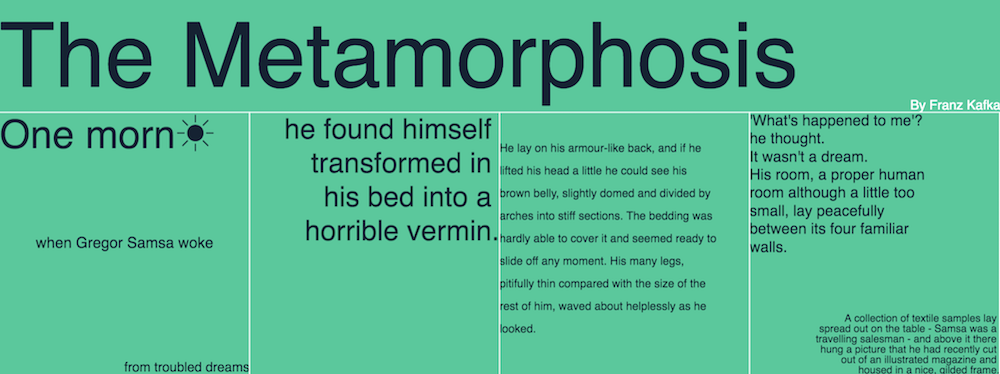
##### You can view this typographic layout demo on the [demo page](https://ptsjs.org/demo/?name=canvasform.textBox).
#### Text Box
The [`textBox`](https://ptsjs.org/docs.md#canvas-canvasform) function in [`CanvasForm`](https://ptsjs.org/docs.md#canvas-canvasform) lets you control how a single-line text should be displayed inside a box.
First, specify a rectangular area (specified by a [`Group`](https://ptsjs.org/guide/Group-0300.html)) and a text string. Optionally, you can also specify where the text should be placed vertically, as well as the characters used for abbreviation when the text truncates. For example:
```
form.textBox( area, "hello world", "bottom", "..." );
```
Below is a demo of truncated text at placed at top, middle, and bottom of a a rectangle. Move your pointer over to change the size of the area.
> Interactive example: [`guide.canvas_textbox`](#demo-guide-canvas-textbox) · [open live](https://ptsjs.org/demo/?name=guide.canvas_textbox)
#### Alignment
Canvas API already provides `textBaseline` and `textAlign` for text alignments. Pts makes these more convenient via [`alignText`](https://ptsjs.org/docs.md#canvas-canvasform) function. Use it with [`textBox`](https://ptsjs.org/docs.md#canvas-canvasform) to position your text within a rectangular area.
> Interactive example: [`guide.canvas_aligntext`](#demo-guide-canvas-aligntext) · [open live](https://ptsjs.org/demo/?name=guide.canvas_aligntext)
##### Combining `alignText` with `textBox` gives you lots of options to organize your typographic layout.
#### Paragraph
For multi-line text, you may use the [`paragraphBox`](https://ptsjs.org/docs.md#canvas-canvasform) function. It works similar to [`textBox`](https://ptsjs.org/docs.md#canvas-canvasform) with extra options to specify line-height and overflow. For example:
```
form.paragraphBox( area, "hello world", 1.5, "middle" );
```
> Interactive example: [`guide.canvas_paragraphbox`](#demo-guide-canvas-paragraphbox) · [open live](https://ptsjs.org/demo/?name=guide.canvas_paragraphbox)
##### A paragraph placed in the middle of the text box. Move your pointer to change the box size.
The text overflow will be cropped by default. If you prefer to let them overflow, set the `crop` parameter to `false`. If your text contains multiple paragraphs, you may separate them with line breaks (`\n`). For example:
```
form.paragraphBox( area, "hello \n\n world", 1.5, "middle", false );
```
The following demo shows 2 paragraphs with different line-height and alignments and no crop.
> Interactive example: [`guide.canvas_paragraphbox2`](#demo-guide-canvas-paragraphbox2) · [open live](https://ptsjs.org/demo/?name=guide.canvas_paragraphbox2)
##### You may combine `alignText` with `paragraphBox` too.
For long paragraphs, you may consider using [`fontWidthEstimate`](https://ptsjs.org/docs.md#canvas-canvasform). This will use a simple heuristic to estimate text width, which is less accurate but may be faster.
#### Considerations
Hope these functions will give you more control over text on canvas, especially when you want to play with typographic experiments. However, putting text on canvas may not be a good approach in many cases. For example, it has poor accessibility (cannot be read for screen reader) and cannot be indexed by search engines.
[`SVGForm`](https://ptsjs.org/docs.md#svg-svgform) supports these text functions too.
#### Cheatsheet
The text layout functions are currently implemented in [`CanvasForm`](https://ptsjs.org/docs.md#canvas-canvasform).
```
// put text content in an area defined by a Group
form.textBox( area, content );
// put in bottom, use "..." when truncated
form.textBox( area, content, "bottom", "..." );
// align text before putting into textBox
form.alignText("left", "top").textBox( area, content );
// put multi-line text in a box with line-height of 1.5
form.paragraphBox( area, content, 1.5 );
// multi-line text center aligned, place in middle and allow overflow
form.alignText("center").paragraphBox( area, content, 1.5, "middle", false );
// Use heuristics to estimate font width
form.fontWidthEstimate(true).paragraphBox( area, content );
```
[Guide source](https://github.com/williamngan/pts/blob/master/guide/md/_0600_Typography.md)
### Animation
[`Tempo`](https://ptsjs.org/docs.md#play-tempo) is a lightweight utility class which helps you create animation sequences intuitively. It's an alternative to many other great animation libraries (which you can use with Pts too).
Typically, animation sequences are often implemented as a curated list of tweens in milliseconds. But what if we take the idea one level higher, and treat it like a dance? Like One-two-three, One-two-three...
Let's start by counting the beats. Tempo is usually measured in beats-per-minute (bpm), so there are two ways to initiate a [`Tempo`](https://ptsjs.org/docs.md#play-tempo) instance: by setting a bpm, or specifying the duration of a beat in milliseconds.
```
// 120 beats-per-minute, or 500ms per beat
let tempo = new Tempo( 120 );
space.add( tempo ); // let the Space update it on every frame
// 500ms per beat, or 120 bpm
let another = Tempo.fromBeat( 500 );
```
The essential function is [`every`](https://ptsjs.org/docs.md#play-tempo), which counts the beats and triggers the callback functions you specified. It's like a smart metronome.
```
let everyTwo = tempo.every( 2 ); // count every 2 beats
let everyTen = tempo.every( 10 ); // count every 10 beats
```
The [`every`](https://ptsjs.org/docs.md#play-tempo) function returns an object with two chainable functions: `start(...)` and `progress(...)`. These functions let you attach custom callback functions that respond to animation events.
The `start` function lets you set a callback to be triggered at the start of every _n_-beats period. For example:
```
// at the start of every 2-beats period, do something
everyTwo.start( (count) => ... )
```
The `progress` function lets you set a callback during the progress of every _n_-beats period. The second parameter `t` starts at 0 and moves toward 1 in every period, so you can use it to interpolate values and tween properties.
```
// during every 10-beats period, do something
everyTen.progress( (count, t, time, isStart) => ... )
```
Let's look at an example. Here the tempo is set to 60 BPM (or 1 second per beat), and we design the behaviors so that:
- Every 1 beat, the square's color changes
- Every 2 beats, the circle's color changes and the rotation completes once
> Interactive example: [`guide.tempo_progress`](#demo-guide-tempo-progress) · [open live](https://ptsjs.org/demo/?name=guide.tempo_progress)
Pretty easy to create synchronized animation sequences, right? Let's try a few more example.
#### Variations
**Tween**: Since the `t` parameter in `progress` callback function goes from 0 toward 1, we can map its value to a [`Shaping`](https://ptsjs.org/docs.md#num-shaping) function and change the tweening style. Another neat trick is to use [`Num.cycle`](https://ptsjs.org/docs.md#num-num) to map the `t` value from [0...1] to [0...1...0].
```
everyTwo.progress( (count, t, time, isStart) => {
let tt = Shaping.elasticOut( t );
...
})
```
> Interactive example: [`guide.tempo_shaping`](#demo-guide-tempo-shaping) · [open live](https://ptsjs.org/demo/?name=guide.tempo_shaping)
**Stagger**: You can offset a beat's timing by a small difference to create a "stagger" effect. Specify an offset time (in milliseconds) in the optional second parameter. A positive offset activates sooner, and a negative offset activates later.
```
let fn = (count, t) => ... ;
everyTwo.progress( fn, 100 ); // activate 100ms sooner
```
> Interactive example: [`guide.tempo_stagger`](#demo-guide-tempo-stagger) · [open live](https://ptsjs.org/demo/?name=guide.tempo_stagger)
**Rhythm**: Set a custom rhythm by passing a list of beats in the `every` function.
```
let custom = tempo.every( [2, 2, 1, 1] ); // Taaa, Taaa, ta-ta.
```
> Interactive example: [`guide.tempo_rhythm`](#demo-guide-tempo-rhythm) · [open live](https://ptsjs.org/demo/?name=guide.tempo_rhythm)
#### Controls
By changing bpm by setting the [`.bpm`](https://ptsjs.org/docs.md#play-tempo) property, you can control the speed of your animation. This makes it easier to synchronize your animations with music or at specific intervals.
```
tempo.bpm = 100; // set new bpm
tempo.bpm += 20; // make it 20 beats faster per minute
```
Try moving your cursor horizontally to change the bpm in this example:
> Interactive example: [`guide.tempo_control`](#demo-guide-tempo-control) · [open live](https://ptsjs.org/demo/?name=guide.tempo_control)
There are two ways to stop an animation. You can either `return true` within `start` or `progress` callback functions, or include a `name` in the third parameter of the callbacks and then call `tempo.stop( name )`.
```
let walking = (count, t) => {
// ...
return (count > 5); // return true will stop this animation
}
tempo.every( 1 ).progress( walking, 0, "robot" );
tempo.stop( "robot" ); // another way to stop this animation
```
#### Cheat Sheet
Create a [`Tempo`](https://ptsjs.org/docs.md#play-tempo) instance with specific bpm.
```
tempo = new Tempo(120); // 120 bpm
tempo = Tempo.fromBeat( 100 ); // one beat every 100ms
space.add( tempo ); // update it from the Space animation loop
```
Count beats and trigger animation callbacks
```
let fiveBeats = tempo.every( 5 );
fiveBeats.start( (count) => {
// do something at start of every period
return count > 5; // optionally return true to stop animating
});
fiveBeats.progress( (count, t, time, isStart) => {
// do something during each period
});
```
[Guide source](https://github.com/williamngan/pts/blob/master/guide/md/_0700_Animation.md)
### Sound
Audio and visual forms complement each other, giving us new opportunities to create unique expressions. Pts simplifies a subset of Web Audio API to help you with common tasks like playbacks and visualizations.
Before we dive in, let's review a snippet of using Pts' Sound functions. It's pretty straightforward.
```
// Load sound and attach analyzer
Sound.load( "/assets/spacetravel.mp3" ).then( s => {
sound = s.analyze(bins);
});
// ...
// Visualize frequencies (within animate loop)
sound.freqDomainTo( space.size ).forEach( (t, i) => {
form.fill( colors[i%5] ).point( t, 30 );
});
```
Here is the result. Click play button to start.
> Interactive example: [`guide.sound_simple`](#demo-guide-sound-simple) · [open live](https://ptsjs.org/demo/?name=guide.sound_simple)
##### Music snippet from [_Space Travel Clichés_](https://soundcloud.com/mrgreenh/space-travel-cliches) by Mr Green H.
How about something more elaborate? Let's try a silly and fun visualization.
> Interactive example: [`guide.sound_visual`](#demo-guide-sound-visual) · [open live](https://ptsjs.org/demo/?name=guide.sound_visual)
##### Click play button and move your pointer around the character. Music snippet from [_Space Travel Clichés_](https://soundcloud.com/mrgreenh/space-travel-cliches) by Mr Green H.
#### Input
Let's get some sounds to begin! Do you want to load from a sound file, receive microphone input, or generate audio dynamically? Pts offers four handy static functions for these.
1. Use [`Sound.load`](https://ptsjs.org/docs.md#play-sound) to load a sound file with a URL or a specific `
` element. The Promise resolves when enough data has loaded to play through, but playback does not start automatically. You can check if the audio file is ready to play by accessing [`.playable`](https://ptsjs.org/docs.md#play-sound) property.
```
Sound.load( "/path/to/hello.mp3" ).then( s => sound = s );
Sound.load( audioElem ).then( s => sound = s ); // load from element
```
2. Use [`Sound.loadAsBuffer`](https://ptsjs.org/docs.md#play-sound) to decode the entire file into an [`AudioBuffer`](https://developer.mozilla.org/en-US/docs/Web/API/AudioBuffer). This does not stream, but it can provide more consistent analysis and replay behavior across browsers.
```
Sound.loadAsBuffer( "/path/to/hello.mp3" ).then( s => sound = s );
```
3. Use [`Sound.generate`](https://ptsjs.org/docs.md#play-sound) to create a sound. You may also generate sounds using other libraries like Tone.js. Read more in Advanced section below.
```
let sound = Sound.generate( "sine", 120 ); // sine oscillator at 120Hz
```
4. Use [`Sound.input`](https://ptsjs.org/docs.md#play-sound) to get audio from default input device (usually microphone). This will return a Promise object which will resolve when the input device is ready, or reject if the device is unavailable or permission is denied.
```
let sound;
Sound.input().then( s => sound = s ).catch( err => ... ); // default input device
Sound.input( constraints ).then( s => sound = s ); // advanced use cases
```
Here's a basic demo of getting audio from microphone:
> Interactive example: [`guide.sound_mic`](#demo-guide-sound-mic) · [open live](https://ptsjs.org/demo/?name=guide.sound_mic)
##### You may first need to allow this page to access microphone, and then click the record button. We also make the recording stop when the pointer leave the demo area so that your microphone is not always on.
You can then [`start`](https://ptsjs.org/docs.md#play-sound) and [`stop`](https://ptsjs.org/docs.md#play-sound) playing the sound like this:
```
sound.start();
sound.stop();
sound.toggle(); // toggle between start and stop
sound.playing; // boolean to indicate if sound is playing
sound.volume = 0.5; // change the volume (default is 1)
```
##### Browsers commonly block audible playback until the user interacts with the page, so start sound from a click or another user gesture.
#### Analyze
Using the [`analyze`](https://ptsjs.org/docs.md#play-sound) function, we can attach an analyzer to keep track of the data in our Sound instance.
```
sound.analyze( 128 ); // Call once to initiate the analyzer
```
This will create an analyzer with 128 bins (more on that later) and default decibel range and smoothing values. See [`analyze`](https://ptsjs.org/docs.md#play-sound) docs for description of the advanced options.
There are two common ways to analyze sound data. First, we can represent sounds as snapshots of sound waves, which correspond to variations in air pressure over time. This is called the time-domain, as it measures amplitudes of the "waves" over time steps.
To get the time domain data at current time step, call the [`timeDomain`](https://ptsjs.org/docs.md#play-sound) function.
```
// get an uint typed array of 128 values (corresponds to bin size above)
let td = sound.timeDomain();
```
Optionally, use the [`timeDomainTo`](https://ptsjs.org/docs.md#play-sound) function to map the data to another range, such as a rectangular area. You can then apply various Pts functions to transform and visualize waveforms in a few lines of code.
```
// fit data into a 200x100 area, starting from position (50, 50)
let td = sound.timeDomainTo( [200, 100], [50, 50] );
form.points( td ); // visualize as points
```
Since you'll typically call these functions on every animation frame, you can optionally pass the resulting `Group` back in the last parameter to reuse it, which avoids creating new objects per frame:
```
let td; // keep a reference across frames
td = sound.timeDomainTo( [200, 100], [50, 50], [0, 0], td ); // reused
```
In the following example, we map the data to a normalized circle and then re-map it to draw colorful lines.
```
sound.timeDomainTo( [Const.two_pi, 1] ).map( t => ... );
```
> Interactive example: [`guide.sound_time`](#demo-guide-sound-time) · [open live](https://ptsjs.org/demo/?name=guide.sound_time)
##### Click to play and visualize sounds of drum, tambourine, and flute from Philharmonia Orchestra.
In a similar way, we can access the frequency domain data by [`freqDomain`](https://ptsjs.org/docs.md#play-sound) and [`freqDomainTo`](https://ptsjs.org/docs.md#play-sound). The frequency bins are calculated by an algorithm called Fast Fourier Transform (FFT). The FFT size is 2 times the bin size and both need to be powers of 2. (Recall that we set bin size to 128 earlier). You can quickly test it with a single line of code:
```
form.points( sound.freqDomainTo( space.size ) );
```
The following is a basic frequency-domain example for your reference.
> Interactive example: [`guide.sound_frequency`](#demo-guide-sound-frequency) · [open live](https://ptsjs.org/demo/?name=guide.sound_frequency)
The interplay of sounds and shapes offer many possibilities indeed. Make good use of your imagination to create something beautiful, fun, and unexpected!
#### Advanced
If media-element analysis behaves differently across target browsers, load and decode the whole file with [`loadAsBuffer`](https://ptsjs.org/docs.md#play-sound). This uses an [`AudioBuffer`](https://developer.mozilla.org/en-US/docs/Web/API/AudioBuffer) instead of a streaming `` element.
```
Sound.loadAsBuffer( "/path/to/hello.mp3" ).then( s => sound = s );
```
`AudioBuffer` doesn't support streaming and its source node can only be played once. Pts recreates the buffer for you when you call [`start`](https://ptsjs.org/docs.md#play-sound) or [`toggle`](https://ptsjs.org/docs.md#play-sound) again, so replay just works. If you want to prepare a replay manually, use the convenient [`createBuffer`](https://ptsjs.org/docs.md#play-sound) function without parameter to re-use the previous buffer.
```
// optionally, prepare a replay manually by reusing the loaded buffer
sound.createBuffer();
```
For custom use cases with other libraries, you can create an instance using [`Sound.from`](https://ptsjs.org/docs.md#play-sound) static method. Here's an example using Tone.js:
```
const synth = new Tone.Synth().toDestination();
const context = Tone.getContext().rawContext;
const tap = context.createGain();
synth.connect( tap );
const sound = Sound.from( tap, context ).analyze( 128 );
```
The following demo generates audio using [Tone.js](https://tonejs.github.io/) and then visualizes it with Pts:
[ 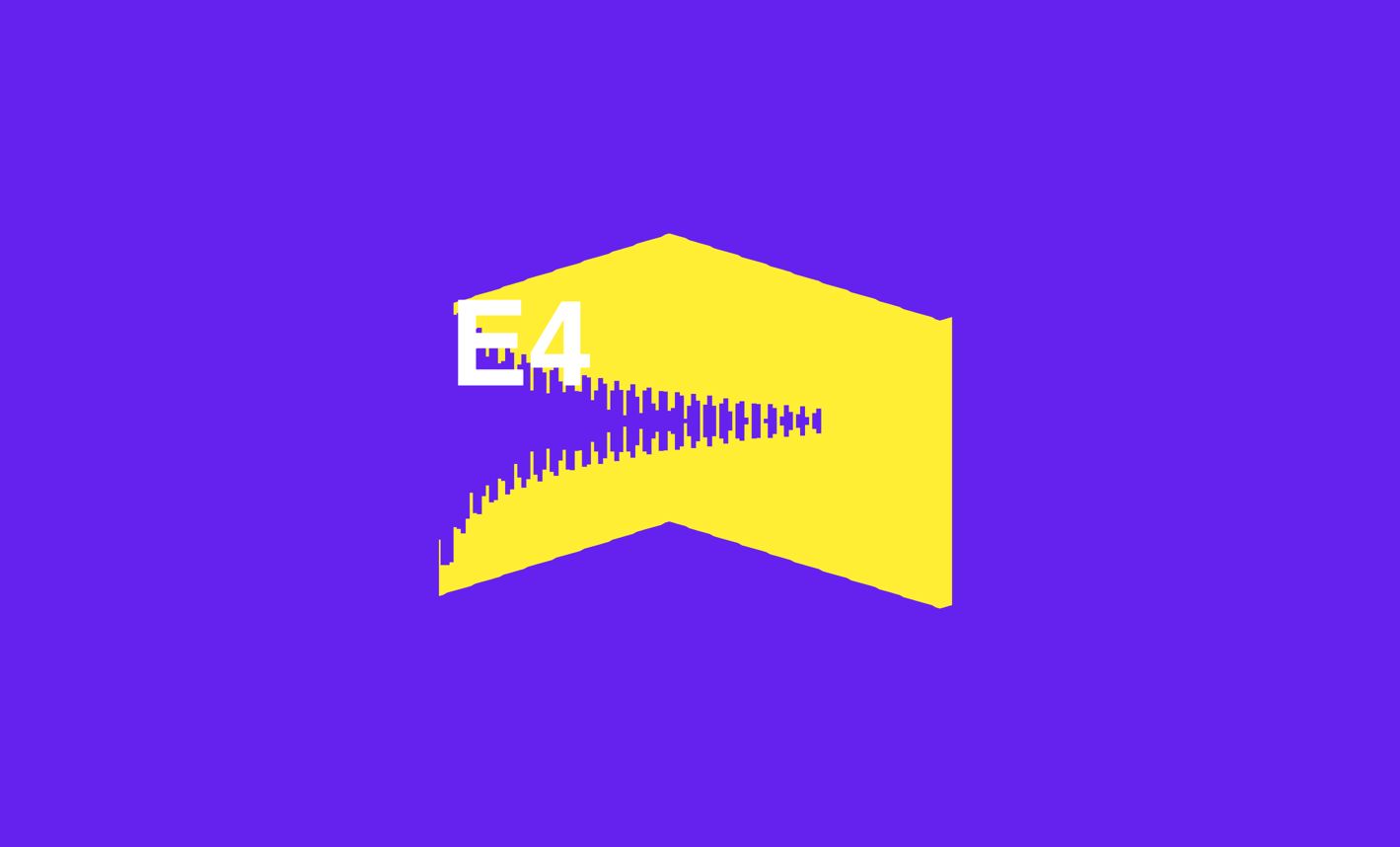 ](https://ptsjs.org/guide/js/examples/tone.html)
##### Click image to open tone.js demo. See [source code here](https://github.com/williamngan/pts/blob/master/guide/js/examples/tone.html).
If needed, you can also directly access the following properties in a Sound instance to make full use of the [Web Audio API](https://developer.mozilla.org/en-US/docs/Web/API/Web_Audio_API).
- `.ctx` to access the `AudioContext` instance
- `.node` to access the `AudioNode` instance
- `.stream` to access the `MediaStream` instance if applicable
- `.source` to access the `HTMLMediaElement` if you're playing from a sound file
- `.buffer` to access or set the `AudioBuffer` if you're using [`loadAsBuffer`](https://ptsjs.org/docs.md#play-sound)
Also note that calling [`start`](https://ptsjs.org/docs.md#play-sound) function will connect the AudioNode to the destination of the AudioContext, while [`stop`](https://ptsjs.org/docs.md#play-sound) will disconnect it.
Web Audio covers a wide range of topics. Here are a few pointers for you to dive deeper:
- [Web Audio API book](https://webaudioapi.com/book/) and [samples](https://webaudioapi.com/samples/) by Boris Smus
- [tone.js](https://tonejs.github.io/) is a framework for creating interactive music in the browser
- [tonal.js](https://github.com/danigb/tonal) is a functional music theory library for javascript
- [MDN documentation](https://developer.mozilla.org/en-US/docs/Web/API/Web_Audio_API) on Web Audio API
#### Cheatsheet
Creating and playing a [`Sound`](https://ptsjs.org/docs.md#play-sound) instance
```
Sound.load( "path/file.mp3" ).then( d => s = d ); // from file
Sound.loadAsBuffer( "path/file.mp3" ).then( d => s = d ); // using AudioBuffer instead
Sound.input().then( d => s = d ); // get microphone input
s = Sound.generate( "sine", 120 ); // sine wave at 120hz
s = Sound.from( node, context ); // advanced use case
s.start();
s.stop();
s.toggle();
```
Getting time domain and frequency domain data
```
s.analyze( 256 ); // Create analyzer with 256 bins
s.timeDomain();
s.timeDomainTo( area, position ); // map to a area [w, h] from position [x, y]
s.freqDomain();
s.freqDomainTo( [10, 5] ); // map to a 10x5 area
g = s.freqDomainTo( area, position, trim, g ); // reuse a Group across frames
```
[Guide source](https://github.com/williamngan/pts/blob/master/guide/md/_0800_Sound.md)
{...} }
/>
```
Learn more at [react.ptsjs.org](https://react.ptsjs.org) and install it from [npm](https://www.npmjs.com/package/react-pts-canvas).
#### Render Pts.js in the command line
[`pts-render`](https://cli.ptsjs.org) is a CLI tool for Pts.js. Use it to work directly from the terminal without a browser.
Learn more at [cli.ptsjs.org](https://cli.ptsjs.org) and install it from [npm](https://www.npmjs.com/package/pts-render).
#### Python
[`Pts.py`](https://ptspy.org) is a new take on Pts ideas implemented in Python. It's an early-stage library.
Learn more at [ptspy.org](https://ptspy.org). Give it a try!
#### Your contribution
Have you created a library, tool or project based on Pts? Please let us know by [filing an issue](https://github.com/williamngan/pts/issues).
[Guide source](https://github.com/williamngan/pts/blob/master/guide/md/_8000_Ecosystem.md)
## Demos